
MiniMax H3 Max
Turn a scene in your mind into a video. Start with words, a photo or a set of references, then shape the action, camera and atmosphere with MiniMax H3 Max.
Reference imageDescribe the video you want to create…What is MiniMax H3 Max?
MiniMax H3 Max is an AI video model for turning ideas and visual materials into short films. Describe a scene, animate a product photo or bring a character into motion. Text-to-video, image-to-video and Omni Reference give you different ways to build the shot, from its subject and setting to the movement of the camera.
MiniMax H3 Max prompt examples
Explore three ideas for your next clip: a quiet product close-up, a character in motion and a landscape at sunrise. Use the prompts to describe the scene and the movement you want.

Product motion
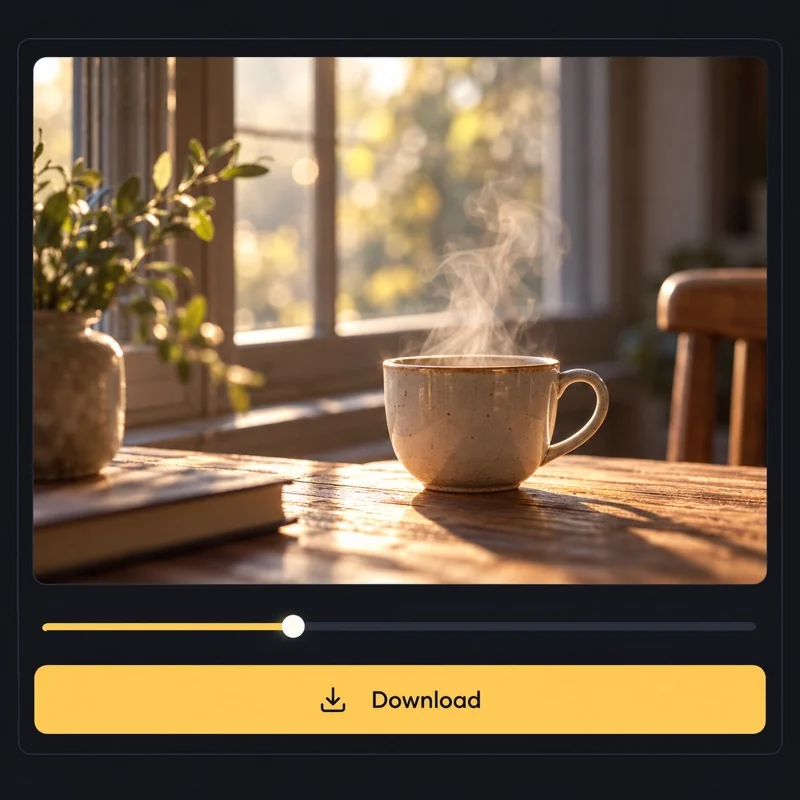
An unbranded ceramic cup sits on a wooden table beside a window. Steam rises gently. The camera moves slowly closer while the cup stays still. Soft morning light, one continuous shot.
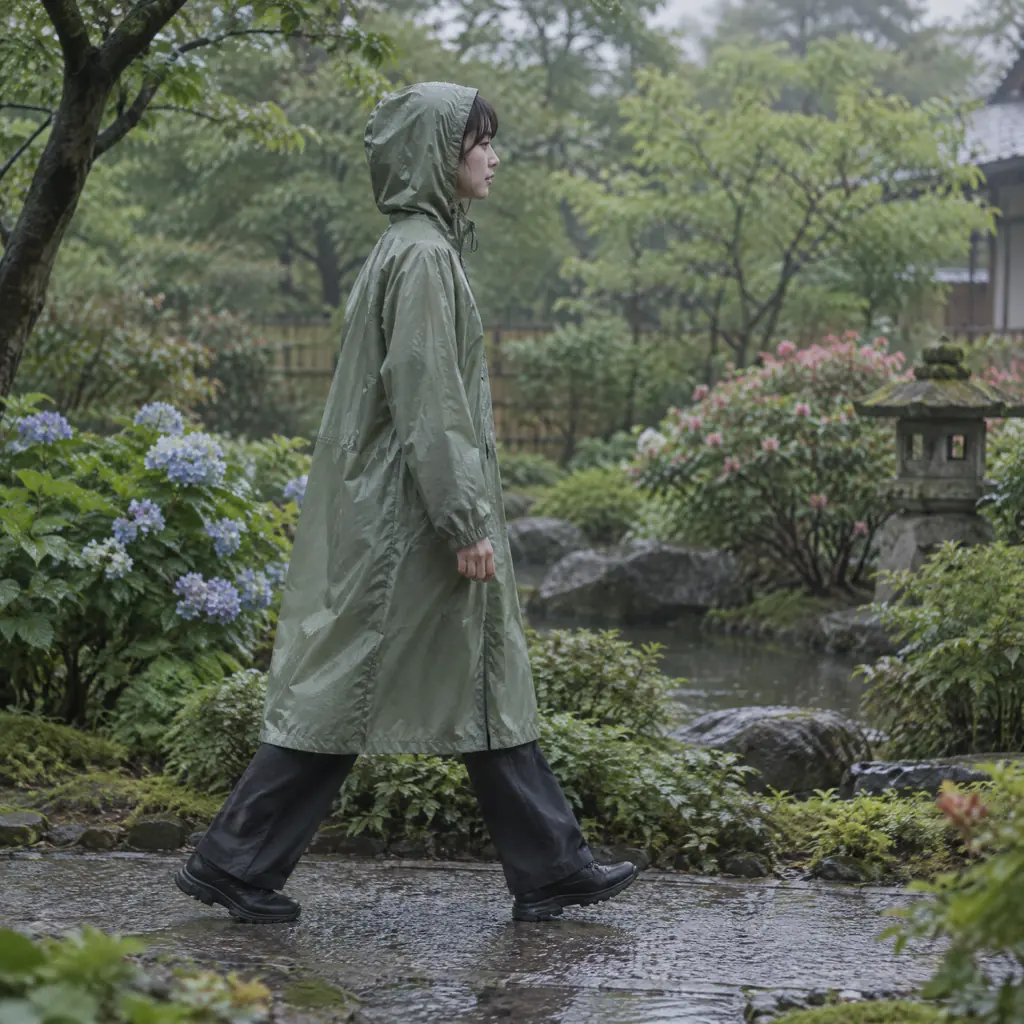
Character study
A person in a raincoat walks along a quiet garden path. The camera tracks from the side at walking speed. Keep the same outfit and soft overcast lighting throughout the short scene.
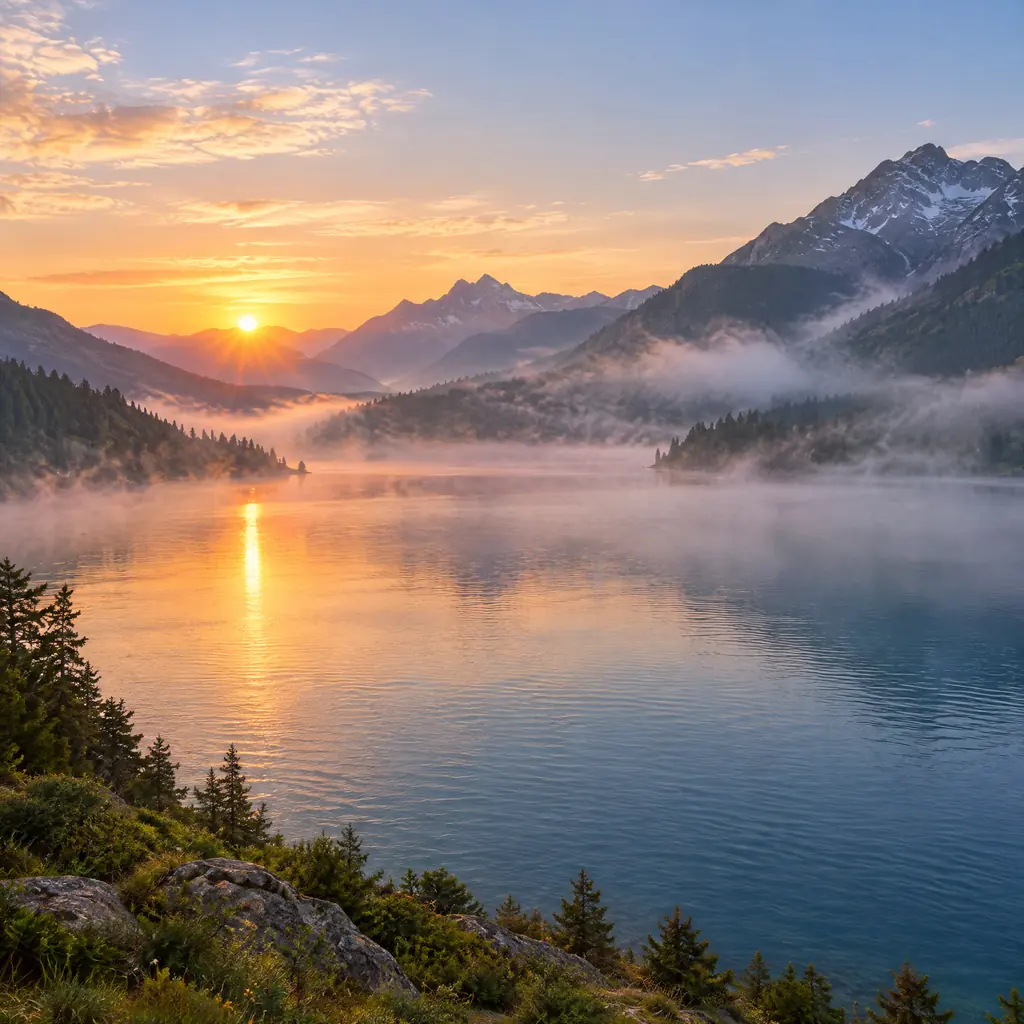
Landscape movement
A wide view of a mountain lake at sunrise. Small ripples cross the water and thin mist drifts above it. Keep the camera still and the movement gentle. No scene cuts.
How to use MiniMax H3 Max
From your first idea to a finished clip in three steps.
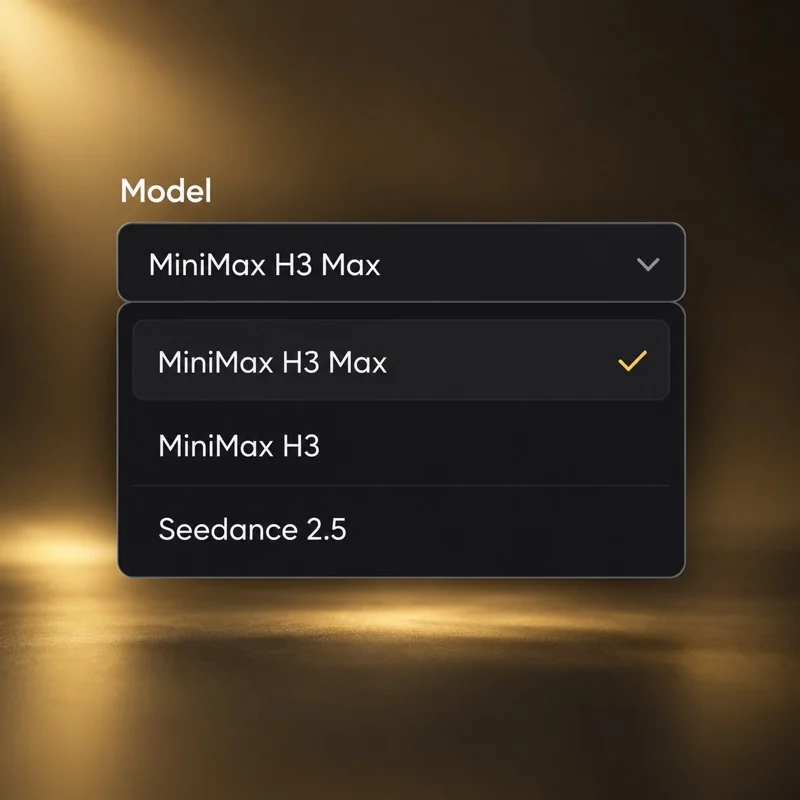
Choose your model
Open the video generator with MiniMax H3 Max selected. Choose text-to-video, image-to-video or Omni Reference to match the material you want to start with.
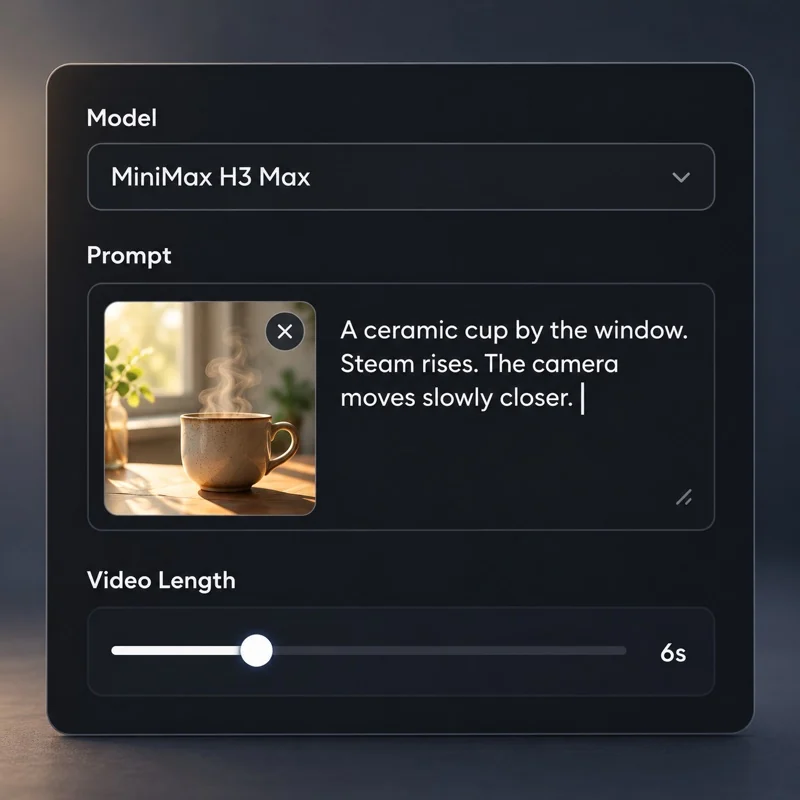
Describe the scene
Write what happens, how the camera moves and what the light looks like. Add your starting image or reference files, then choose the video length and resolution.
Generate and download
Check the credit total and create your video. Open the finished clip in the workspace or My Creations to preview it and download it.
Key features of MiniMax H3 Max
Build the scene around your idea. Use words to direct a shot, images to set its look and references to bring the details together.

Create a scene from words
Turn a written idea into a video with text-to-video. Describe the subject, action, setting and lighting, then direct the camera with a close-up, a slow push-in or a tracking shot. Build a product moment, a character scene or an atmospheric landscape from a single prompt.
Create with MiniMax H3 Max
Bring still images to life
Start with a photo, illustration or product shot. Image-to-video uses it as the opening frame while your prompt describes what moves next: fabric catching the breeze, a person turning toward the camera or a gentle reveal around an object. Give an existing visual a new sense of time and movement.
Create with MiniMax H3 Max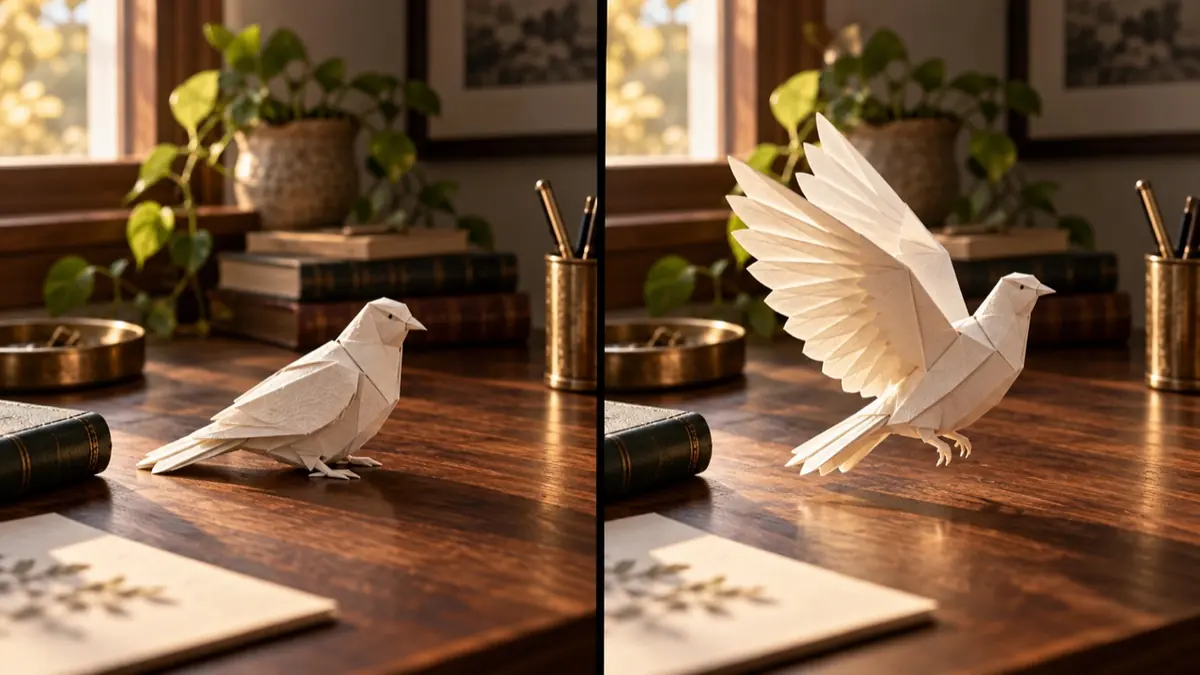
Shape the opening and ending
Give your video a clear beginning and destination. Add a starting image and an optional ending frame in image-to-video, then describe the action between them. Plan a product reveal, a change of pose or a visual transition with both ends of the shot in mind.
Create with MiniMax H3 Max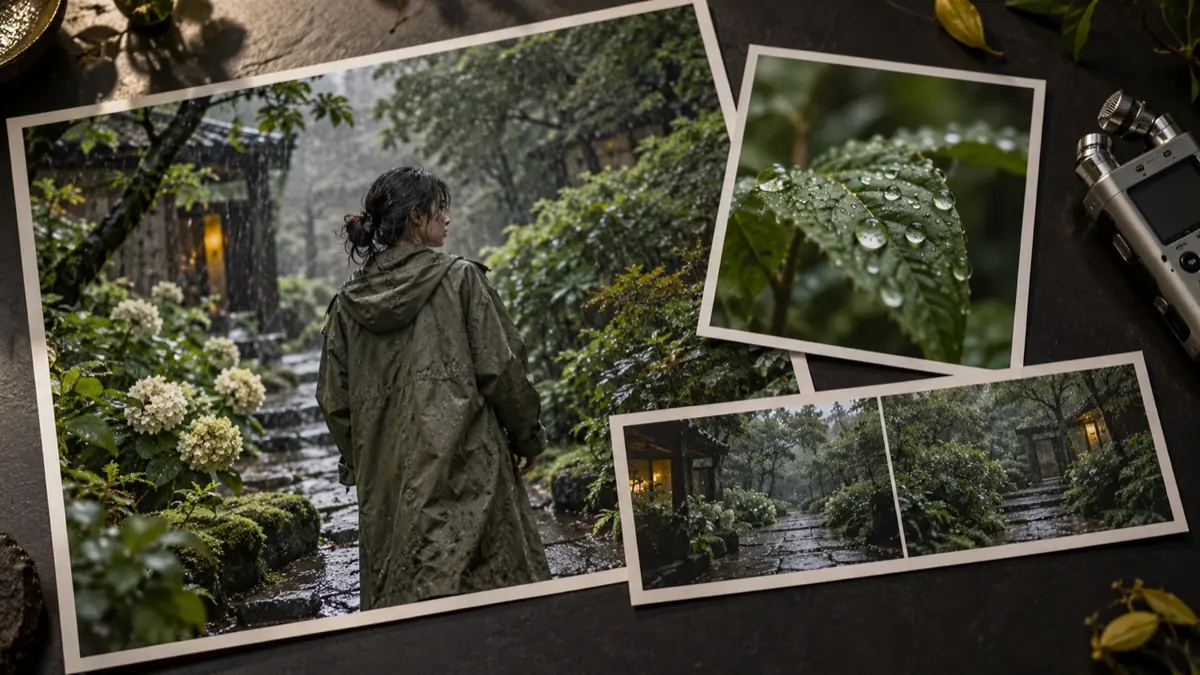
Bring your references together
Use Omni Reference to combine images, video and audio in one request. Set the subject and visual style with images, show a movement with video, and add sound as an audio reference. Explain the role of each file in your prompt to give the scene a shared creative direction.
Create with MiniMax H3 MaxCompare MiniMax H3 Max with other models
Compare MiniMax H3 Max, MiniMax H3 and Seedance 2.5 by input modes, resolution, video length and reference support. Find the combination that fits your next project.
| MiniMax H3 Max | Minimax H3 | Seedance 2.5 | |
|---|---|---|---|
| Input modes | Omni Reference · Image to video · Text to video | Omni Reference · Image to video · Text to video | Omni Reference · Image to video · Text to video |
| Resolutions | 480p · 540p · 768p · 1080p | 768p · 2k | 480p · 720p · 1080p |
| Duration | 3–15 s | 4–15 s | 4–30 s |
| Reference images | 9 files | 9 files | 30 files |
| Reference videos | 3 files | 3 files | 10 files |
| Reference audio | 3 files | 3 files | 10 files |
Community discussions about MiniMax H3 Max
See what MiniMax, Artificial Analysis and Venice are sharing about H3 Max. Browse official updates, independent analysis and creative discussions from the community.
Loading post. You can also open the original.
View original post on XLoading post. You can also open the original.
View original post on XLoading post. You can also open the original.
View original post on XLoading post. You can also open the original.
View original post on XQuestions about MiniMax H3 Max
What is MiniMax H3 Max?
MiniMax H3 Max is a video model derived from MiniMax H3, with post-training focused on following prompts and visual presentation. On this platform, you can use text, images or reference materials to develop a short scene.
How is MiniMax H3 Max different from MiniMax H3?
H3 Max is a post-trained H3 variant focused on prompt adherence and visual presentation. On this platform, H3 includes a 2K option, while H3 Max currently offers settings up to 1080p. Compare the available inputs, output settings and credit estimate when choosing.
What resolutions and video lengths can I choose?
Choose 480p, 540p, 768p or 1080p and a video length from 3 to 15 seconds in the generator. Select your input mode first, then adjust the controls shown for that mode.
What types of videos can I create with MiniMax H3 Max?
Use it to explore product demonstrations, character scenes, landscape motion and short social videos. Start with one clear scene: describe the subject, action, camera and lighting. You can also animate an image by describing how the scene should move.
Does MiniMax H3 Max generate audio?
MiniMax H3 Max supports video with accompanying sound. Describe dialogue, ambience or sound effects in your prompt. Omni Reference also lets you add audio files as sound references.
Can I use images and other reference materials?
Yes. Choose image-to-video for a starting image and an optional ending frame. Omni Reference accepts images, video and audio, with limits shown in the generator. Explain what each reference should guide, such as the subject, setting or movement.
Can I try MiniMax H3 Max for free on this platform?
Generation uses credits. Sign in to check your balance and the estimate for your selected settings. Any trial credits must be enough to cover the task; if your balance is lower than the estimate, you need more credits before generating.
Where can I view and download my video?
Your submitted tasks and finished videos appear in the video workspace and My Creations. Open a completed clip to play it and download the file.
Create your next video with MiniMax H3 Max
Your idea already has a first scene. Choose a starting point and create it with MiniMax H3 Max.