
Kling 4.0
Put your ideas in motion with Kling 4.0. Create cinematic videos from text, images and references, then direct the action, camera and sound in scenes up to 30 seconds long.
Reference imageDescribe the video you want to create…What is Kling 4.0?
Kling 4.0 is an AI video model from Kling AI built for expressive action, detailed scenes and cinematic camera movement. Start with a written idea, animate an image or combine visual and audio references. Follow a cyclist through a turn, reveal a product in changing light or let a character carry a scene with movement and dialogue. Choose clips from 3 to 30 seconds and shape the shot around your story.
Kling 4.0 prompt examples
Explore three Kling 4.0 prompts for an action shot, a product close-up and a character scene with dialogue. Each prompt describes the subject, movement, camera and sound.
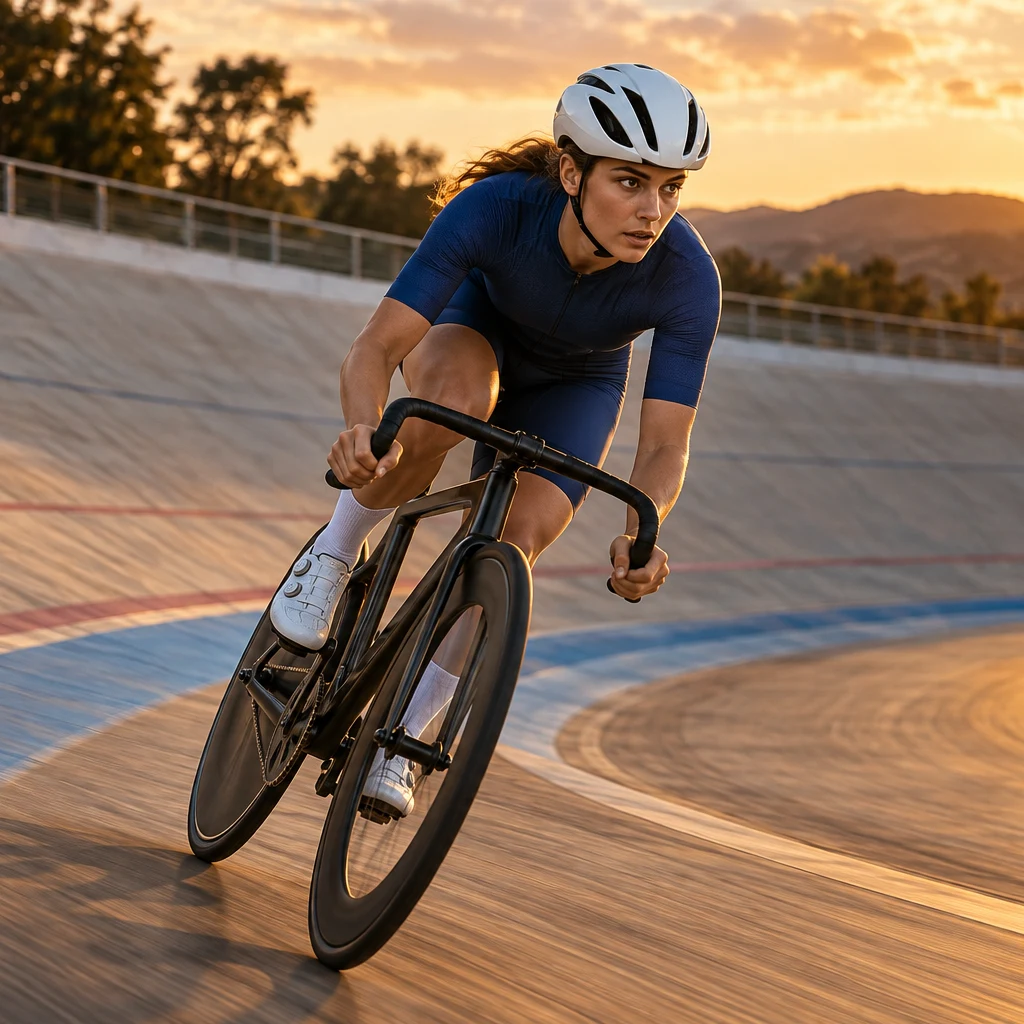
Follow the action
A cyclist in a cobalt-blue jersey and white helmet leans into a sweeping velodrome turn at sunset. Track beside her at wheel height, keeping her face and bike sharp as the track moves past. Continue smoothly through the bend in one shot. Wind and tire sounds, no music.

Make the product the focal point
An unbranded amber perfume bottle stands on pale limestone beside a sunlit window. An ivory silk ribbon drifts behind it in a light breeze. Move the camera slowly around the bottle, keeping its shape and warm glass reflections consistent. A quiet room with a soft rustle of fabric.
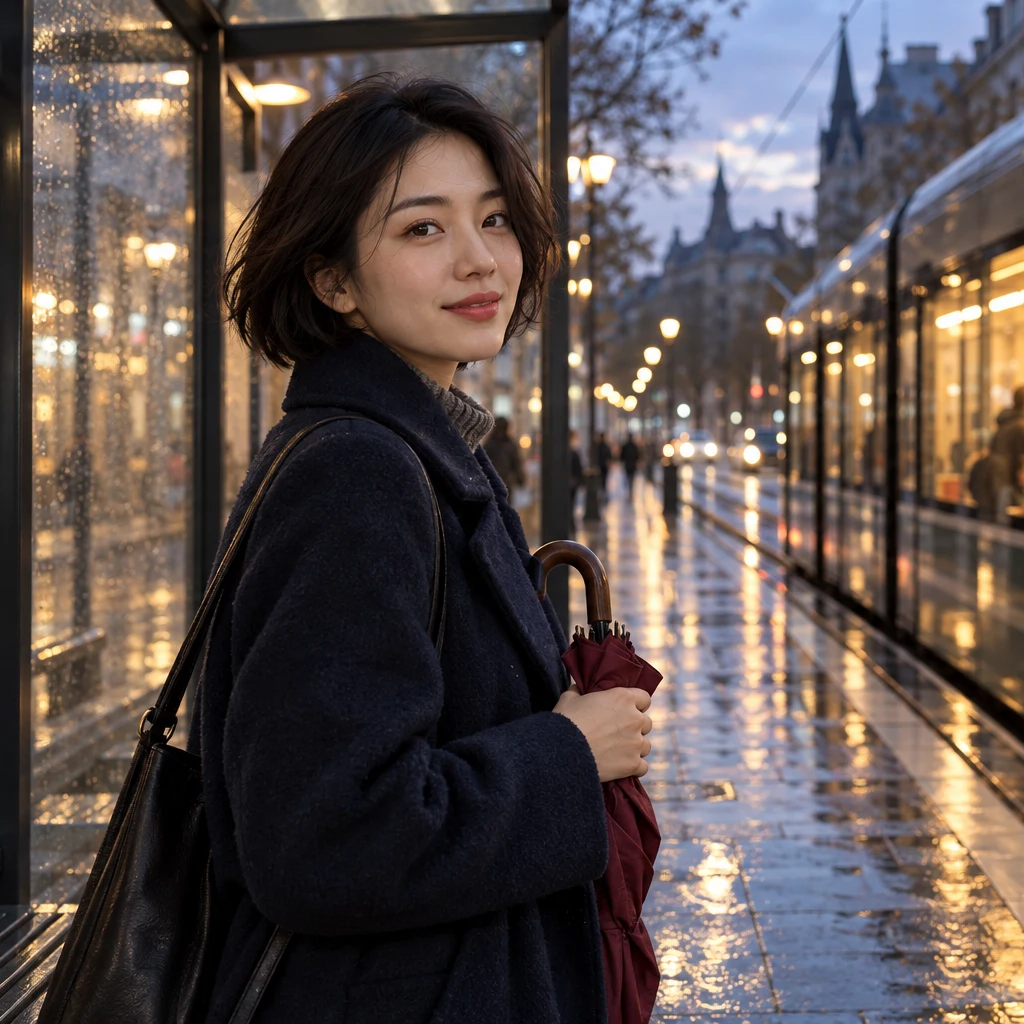
Give a character a voice
A woman with a short dark bob and a midnight-blue coat waits at a tram stop after rain, holding a folded burgundy umbrella. As a tram arrives behind her, she turns toward the camera and says, "There you are. I saved you a seat." Use a gentle push-in, natural speech and the sound of the arriving tram.
How to use Kling 4.0
Create a video with Kling 4.0 in three steps: select the model, describe the scene, then generate and download.
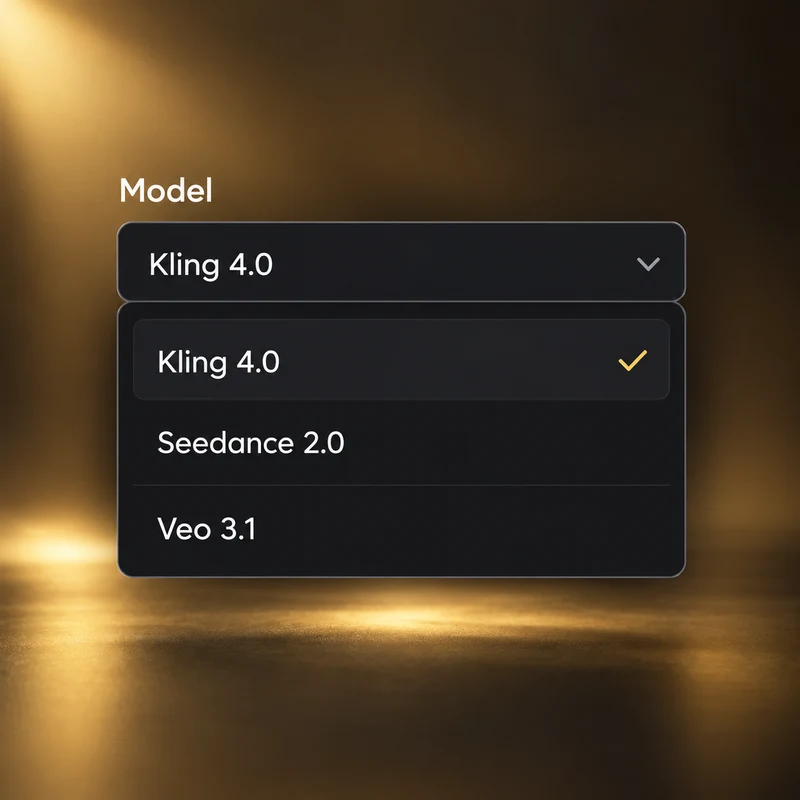
Select Kling 4.0
Open the video generator and choose Kling 4.0. Start with Text to Video for a written idea, Image to Video for a starting frame, or Omni Reference to work with images, video and audio together.
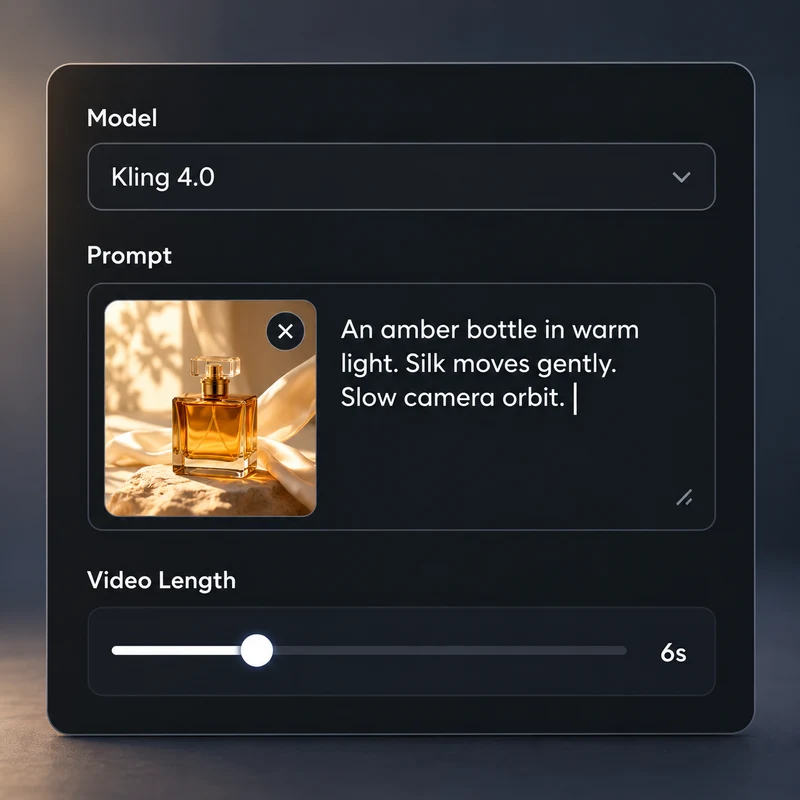
Set the scene and movement
Describe what happens, how the camera moves and what you hear. Add your image or reference materials, then choose the video length and resolution. In Image to Video, add an ending frame to define where the shot finishes.
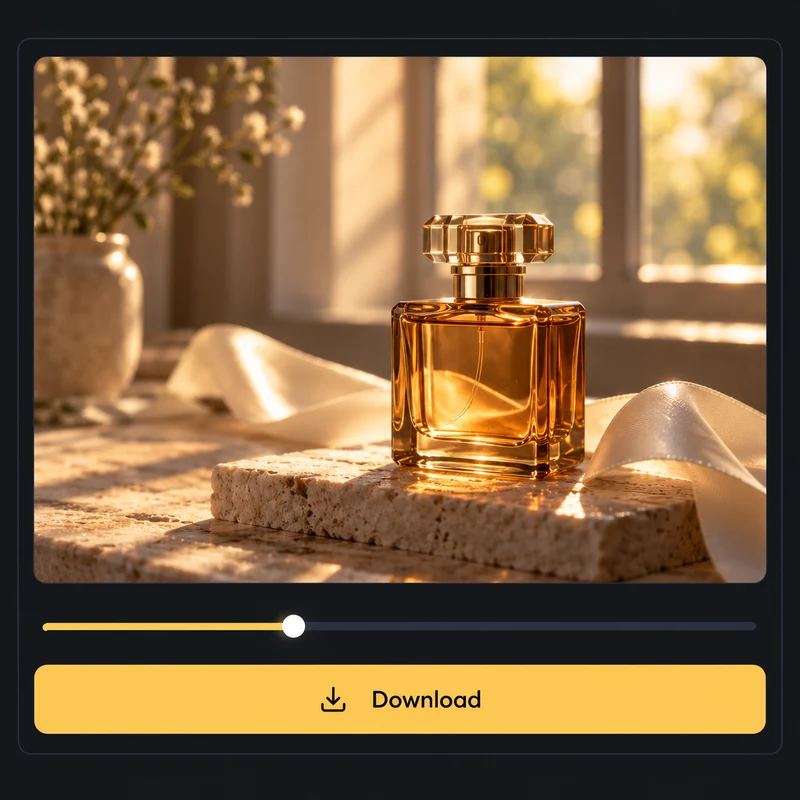
Create, preview and download
Review the credit total and select Create. Your task appears in the workspace and My Creations. Open the completed video to watch it, check the action and download the file.
Key features of Kling 4.0
Explore text-to-video, image-to-video, first and last frame control, and Omni Reference in Kling 4.0.
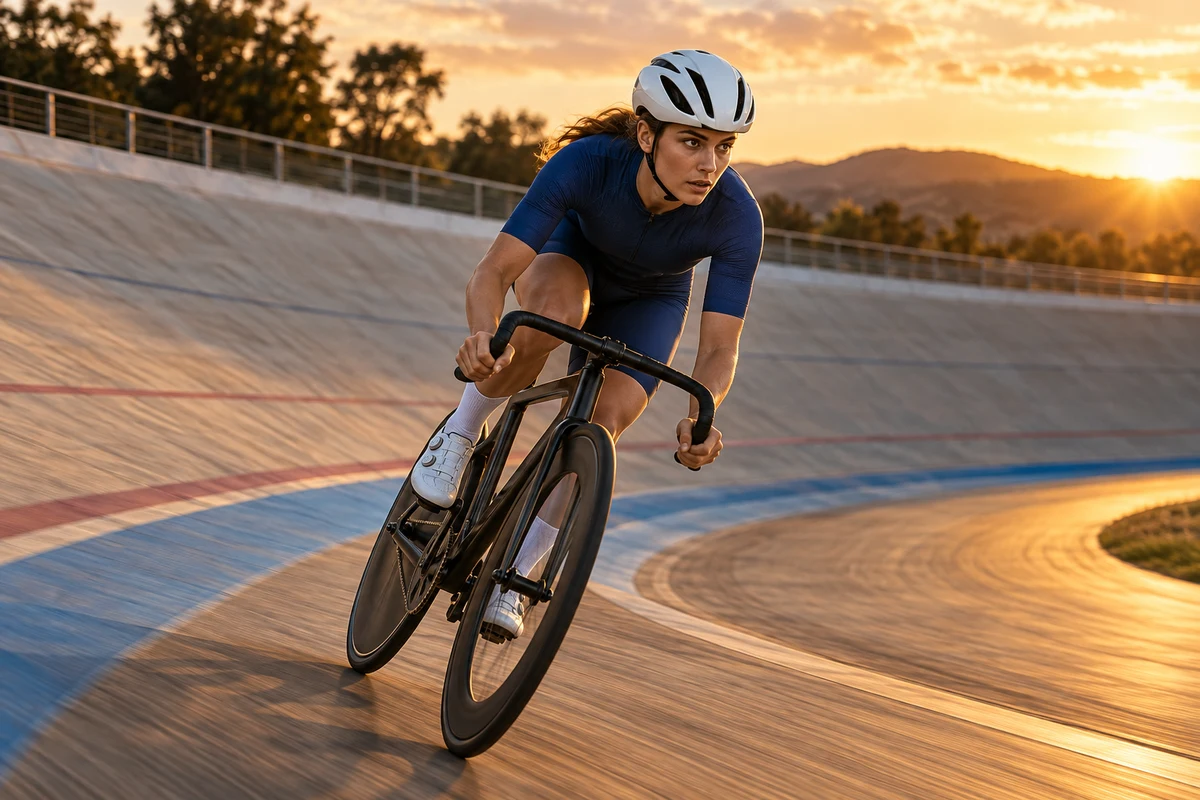
Follow the action with your camera
Create moving scenes from a written prompt. Describe a fast turn, a change of expression or a slow approach, then place the camera beside, behind or around the subject. Kling 4.0 brings action and camera movement into the same shot, with up to 30 seconds for the moment to develop.
Create with Kling 4.0
Turn a still image into a scene
Give a product photo, portrait or illustration a sense of time. Use your image as the first frame and describe the movement that follows: silk catching the air, a subject turning toward the lens or a camera revealing a new angle. Keep the creative direction focused on the image you started with.
Create with Kling 4.0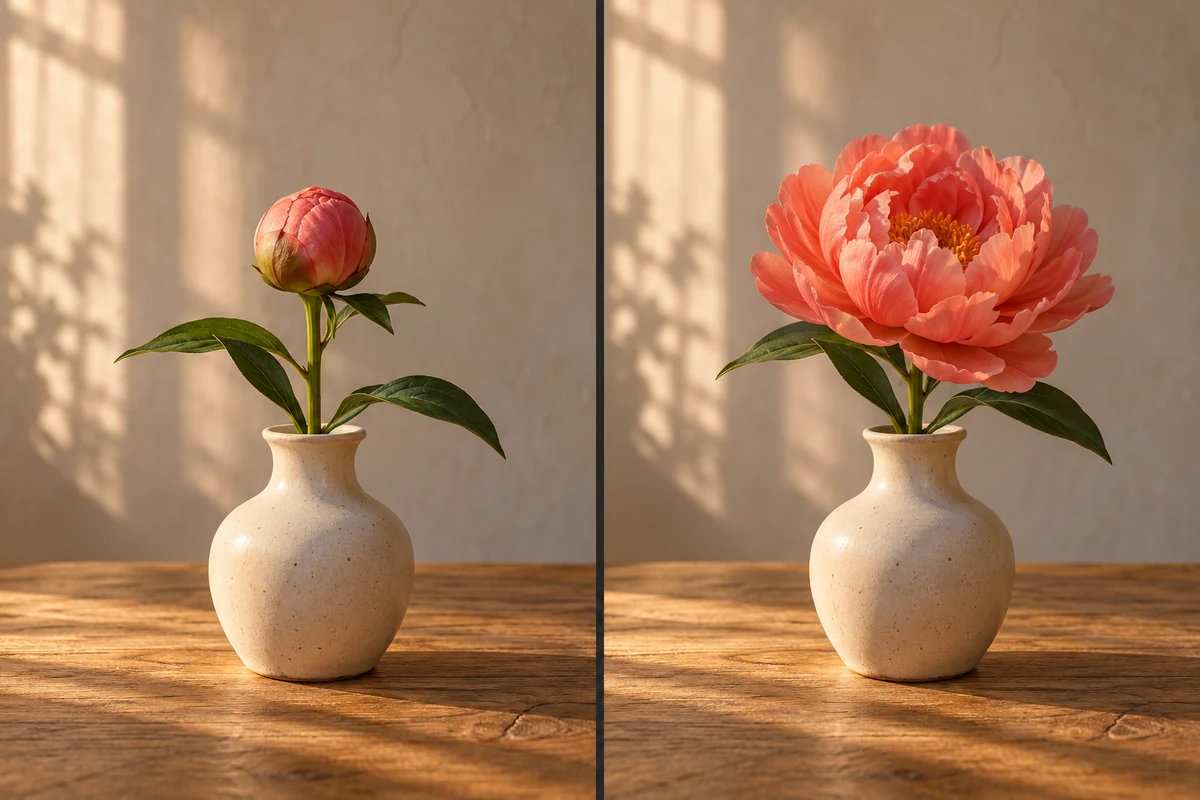
Choose how the shot begins and ends
Set the opening image and add an optional ending frame in Image to Video. Describe the action between those two moments to create a product transformation, a change of pose or a reveal. A clear start and finish gives the scene a visual destination.
Create with Kling 4.0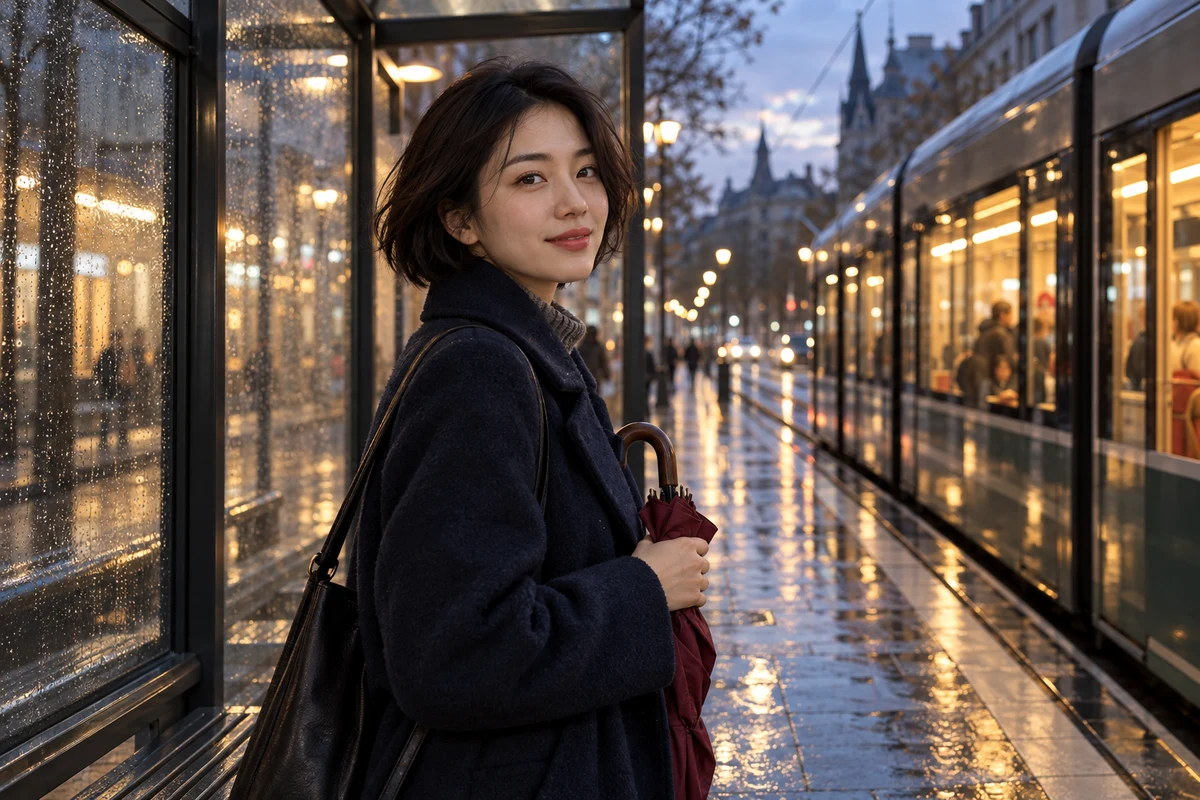
Give your references a shared direction
Bring images, video and audio into Omni Reference. Use a portrait to define a character, a clip to guide movement and a voice reference to shape how the character sounds. Reference the files in your prompt and explain their roles so appearance, action and sound work toward the same scene.
Create with Kling 4.0Kling 4.0 use cases
Use Kling 4.0 to create product films, character stories and action clips for social videos.
Product and brand films
Turn a product image into a reveal, a close-up or a short commercial. Direct the lighting, camera and movement around the details you want people to notice.
Character-driven stories
Create a conversation, an arrival or a small turning point. Use references to establish the character, then describe the performance, dialogue and atmosphere.
Action and social videos
Bring sports, fashion and everyday movement into short clips. Start with a clear action and a camera move that makes the moment easy to follow.
Compare Kling 4.0 with other models
Compare Kling 4.0, Seedance 2.0 and MiniMax H3 Max by input modes, resolution, video length and reference support.
| Kling 4.0 | Seedance 2.0 | MiniMax H3 Max | |
|---|---|---|---|
| Input modes | Omni Reference · Image to video · Text to video | Omni Reference · Image to video · Text to video | Omni Reference · Image to video · Text to video |
| Resolutions | 720p · 1080p | 480p · 720p · 1080p · 4k | 480p · 540p · 768p · 1080p |
| Duration | 3–30 s | 4–15 s | 3–15 s |
| Reference images | 10 files | 9 files | 9 files |
| Reference videos | 5 files | 3 files | 3 files |
| Reference audio | 3 files | 3 files | 3 files |
Community discussions about Kling 4.0
Explore creator posts and conversations about Kling 4.0. Open the originals on X to see the full discussion.
Loading post. You can also open the original.
View original post on XLoading post. You can also open the original.
View original post on XLoading post. You can also open the original.
View original post on XLoading post. You can also open the original.
View original post on XLoading post. You can also open the original.
View original post on XQuestions about Kling 4.0
What is Kling 4.0?
Kling 4.0 is an AI video model from Kling AI for creating scenes from text, images and reference materials. It combines detailed visuals, dynamic action, cinematic camera movement and native audio in clips up to 30 seconds long.
Which creation modes are available?
Choose Text to Video to build a scene from a prompt, Image to Video to animate a starting image with an optional ending frame, or Omni Reference to guide the video with image, video and audio files.
What video lengths and resolutions can I choose?
The generator offers video lengths from 3 to 30 seconds and output at 720p or 1080p. Text to Video and Omni Reference include Auto, 16:9, 9:16, 1:1 and 21:9 aspect ratios. Image to Video uses your frame images to establish the composition.
How many reference files can I add?
Omni Reference accepts up to 10 images, 5 videos and 3 audio files, with a combined limit of 15 files per request. Use images for appearance and setting, video for movement and camera direction, and audio for voice references.
Does Kling 4.0 generate audio?
Yes. Include dialogue, ambience and sound effects in your prompt to direct the scene's audio. Omni Reference also accepts audio files as named voice references. Use the prompt editor's reference picker to connect each voice with its role in the scene.
How do I use the first and last frames?
Select Image to Video and add your starting image. Turn on Add end frame to upload the image you want at the end, then describe what happens between the two. Use Omni Reference separately when you want to guide a scene with multiple reference materials.
How should I write a Kling 4.0 prompt?
Describe the subject, action, setting, camera movement and sound. Keep the sequence clear: say what happens first and what follows. When using references, type @ in the prompt editor, choose a file and explain whether it guides appearance, motion or voice. The prompt field accepts up to 8,000 characters.
How are generation credits calculated?
The generator shows the credit total for your selected resolution, video length, reference inputs and number of videos. Sign in, review the total and check your balance before creating. Each submitted video is saved as its own task.
Where can I find and download my finished video?
Your submitted tasks and completed videos appear in the video workspace and My Creations. Open a finished clip to preview it and download the video file.
Create your next video with Kling 4.0
Open Kling 4.0, choose your starting material and create a video from text, an image or a set of references.