
Seedream 5.5
Create images with natural light and lifelike detail. Refine one part at a time, keep your scene consistent, and turn ideas into transparent creative assets with Seedream 5.5.
Reference imageDescribe the image you want to create…What is Seedream 5.5?
Seedream 5.5 is ByteDance’s multimodal image model for creating and editing images. Its focus is precise revisions: change a detail while retaining the surrounding scene, develop the image through repeated edits, and create transparent or semi-transparent assets for a larger design.
Seedream 5.5 prompt examples
Explore three prompts for natural portraits, focused edits and transparent design assets.
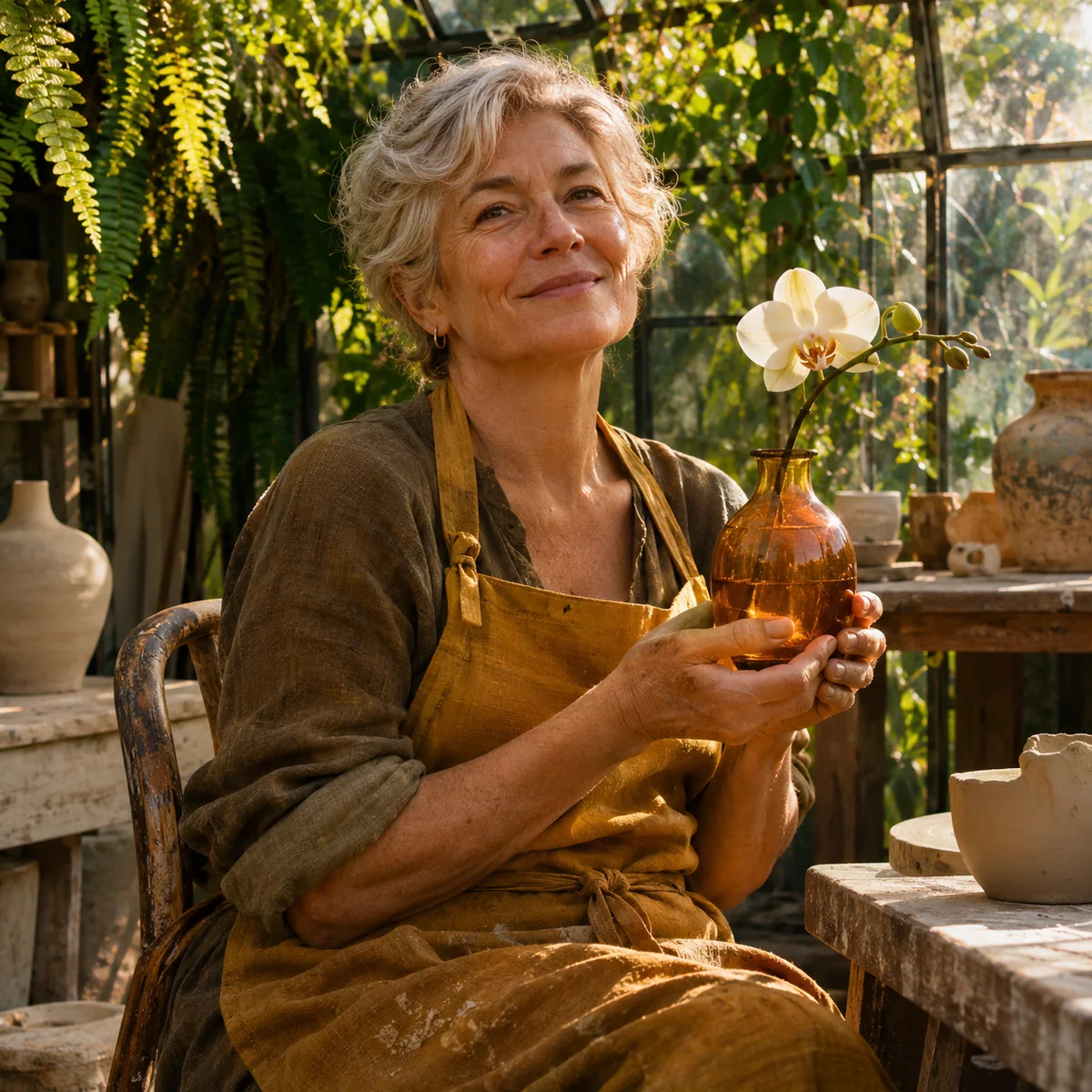
Capture natural light and texture
An older ceramic artist in an ochre linen apron holds an amber glass vase and a cream orchid in a sunlit greenhouse. Preserve fine skin texture, fabric weave and gentle glass reflections. Warm afternoon light, candid editorial portrait.
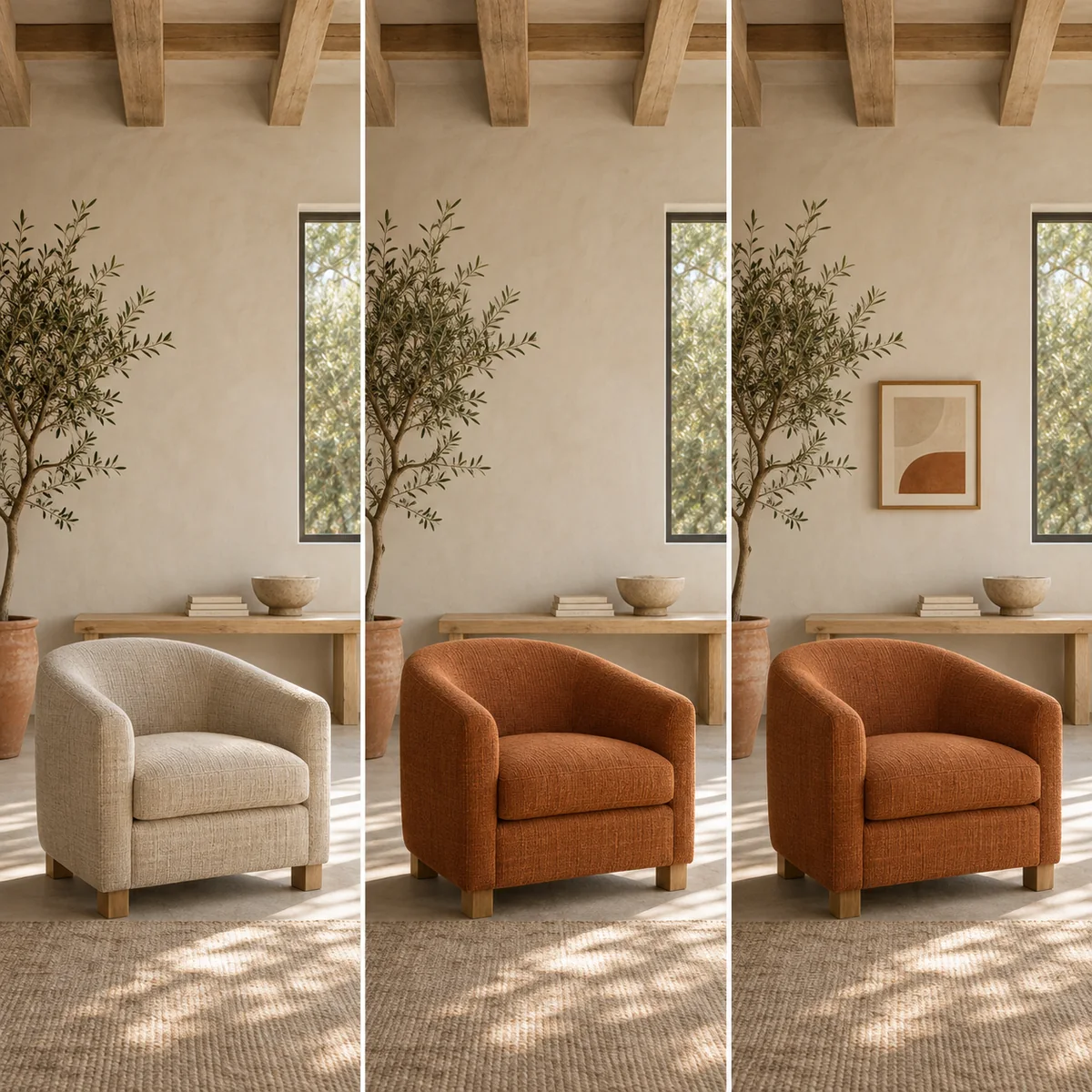
Refine a room one detail at a time
Start with a bright room, an oatmeal armchair, an oak bench and an olive tree. Change only the chair fabric to burnt orange. In the next edit, add a small framed artwork above the bench. Keep the camera angle, window and daylight unchanged.
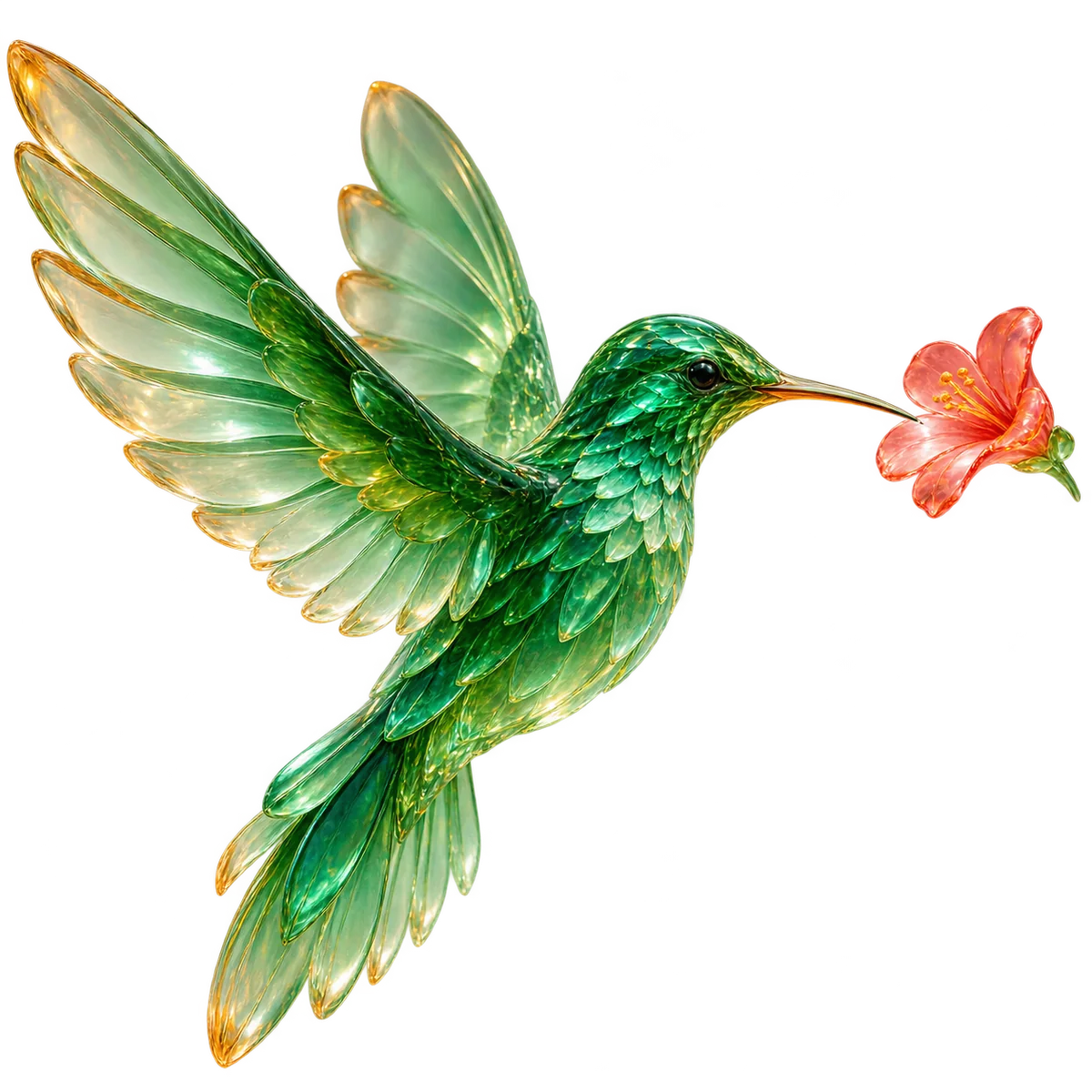
Design an asset with a transparent background
An emerald hummingbird sculpted from translucent glass, wings spread toward a coral flower. Keep the delicate glass edges and partially transparent wings. Isolate the subject on a transparent background, ready to place in a poster or presentation.
How to use Seedream 5.5 on this platform
Choose your model, describe what you want, then review and save the result.
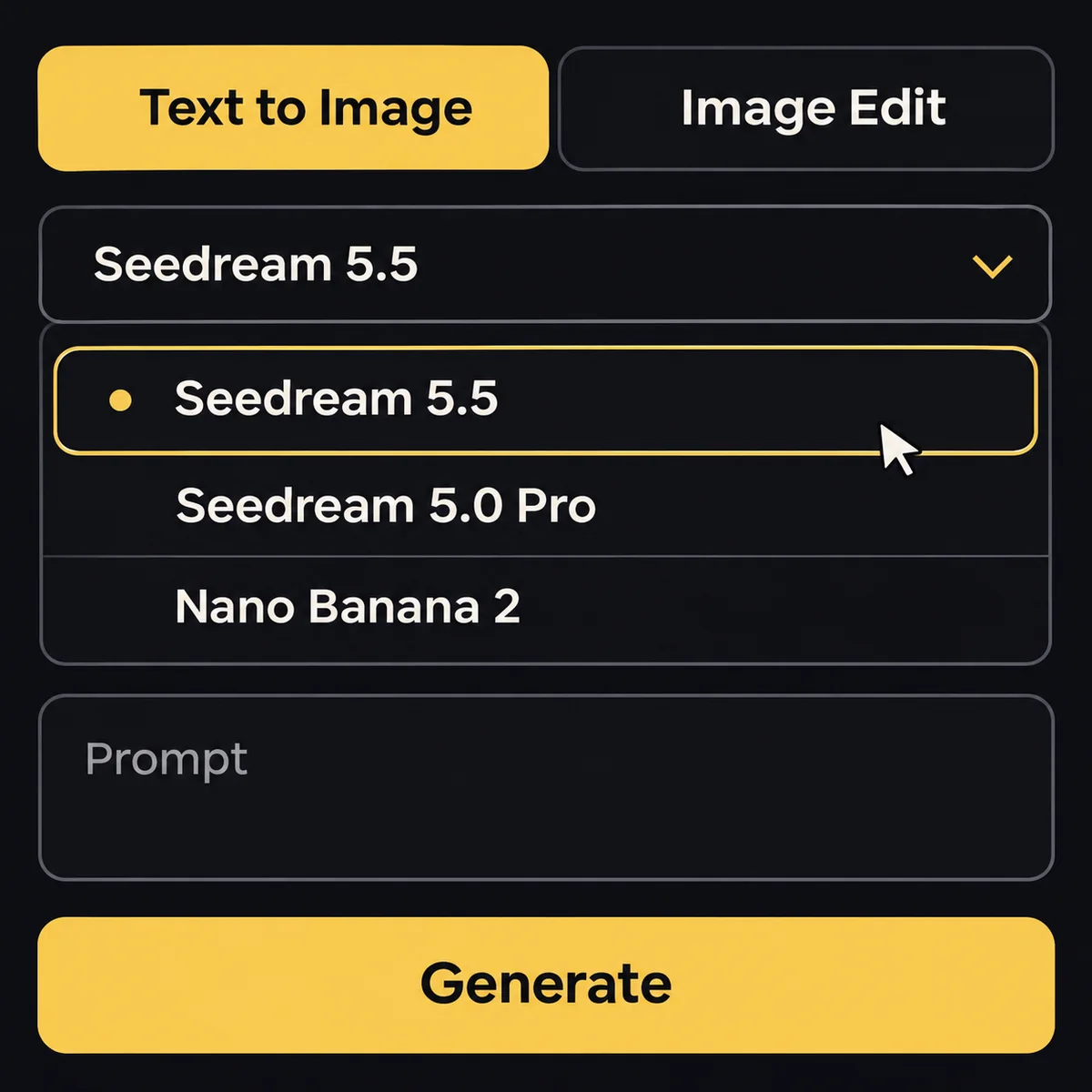
Workflow illustration Select Seedream 5.5
Open the image generator and select Seedream 5.5. Choose text-to-image for a new scene or image editing when starting from a reference.
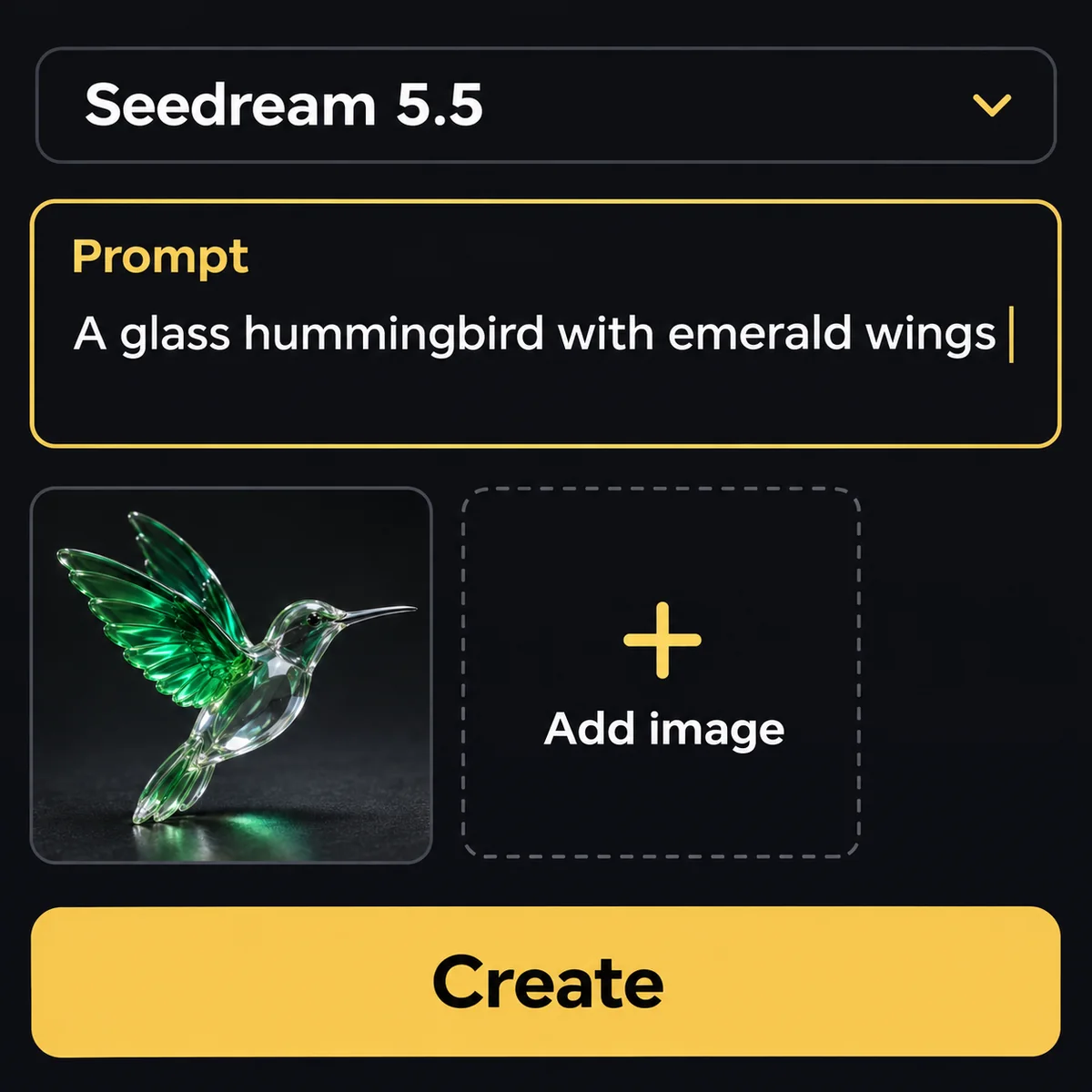
Workflow illustration Write a prompt and add references
Describe the subject, composition, light and materials. For an edit, add your reference and state what should change and what should stay.
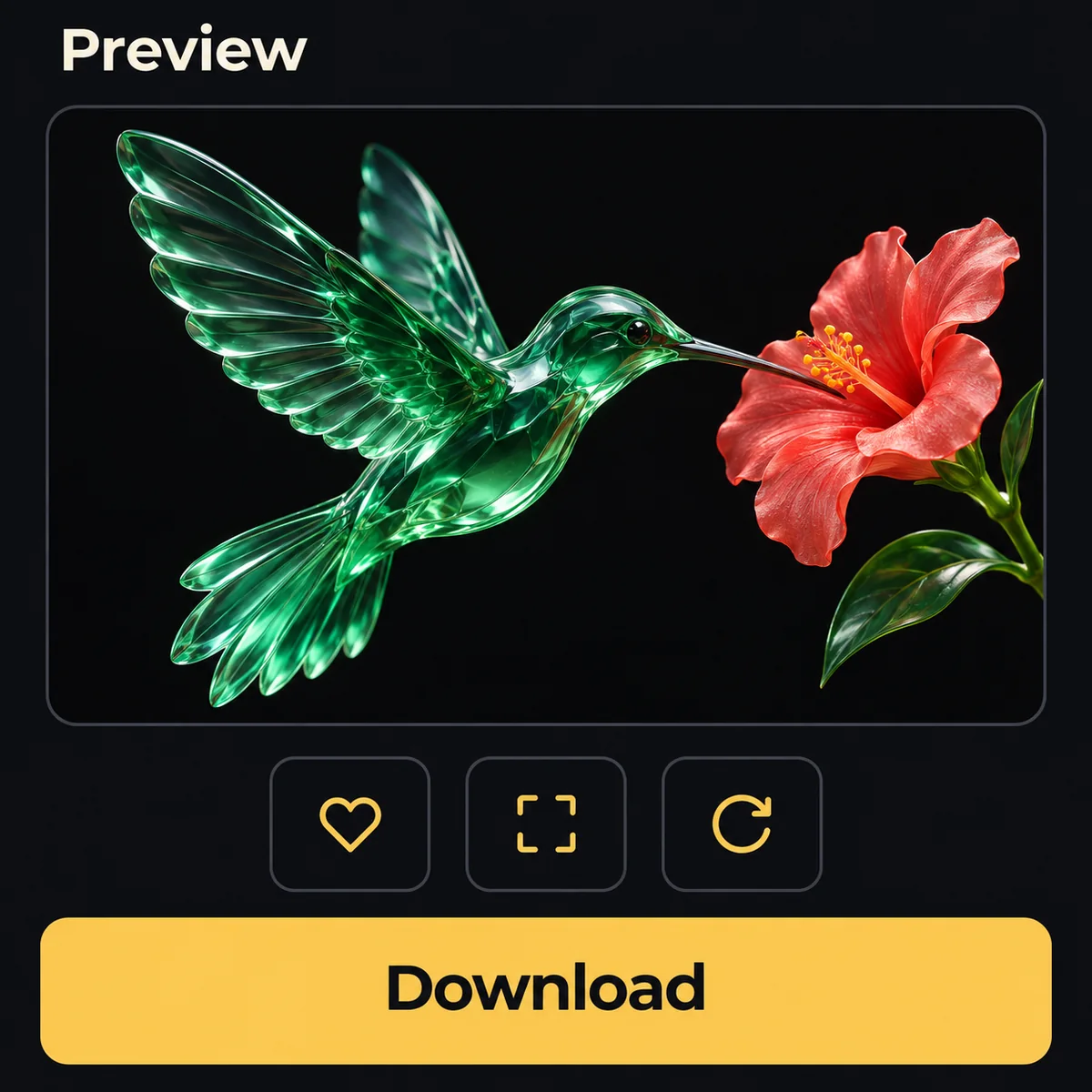
Workflow illustration Generate, review and download
Choose the available output settings, review the credit total and create. Open the finished image in your workspace or My Creations to preview and download it.
Key features of Seedream 5.5
Build a complete scene, refine a specific detail, or create an element to place in your next design.
Make a new edit without starting over
Change a jacket color, replace a prop or add furniture while preserving the parts you want to keep. Build the result through focused revisions, giving each round a clear instruction rather than rewriting the whole scene.
Create with Seedream 5.5Create transparent assets for your designs
Seedream 5.5 supports transparent and semi-transparent image content. Create a sticker, decorative object or design element that can sit on another background, including delicate edges and translucent materials such as glass.
Create with Seedream 5.5Give light, skin and materials a natural feel
Direct the details that make a scene believable: fine skin texture, linen fibers, reflected window light and the way glass catches a highlight. Use these cues in portraits, lifestyle visuals and product concepts.
Create with Seedream 5.5Seedream 5.5 in the community
Read the official announcements and creator experiments below. Open the original posts to see their full context and media.
Loading post. You can also open the original.
View original post on XLoading post. You can also open the original.
View original post on XLoading post. You can also open the original.
View original post on XLoading post. You can also open the original.
View original post on XLoading post. You can also open the original.
View original post on XQuestions about Seedream 5.5
What can I create with Seedream 5.5?
Create images from a written idea, revise an existing scene and develop transparent creative assets. Portraits, interior concepts and product visuals are useful starting points.
How do I write a useful prompt?
Name the subject and scene, then specify composition, light and material. For an edit, describe one clear change and the details to preserve.
Can I use reference images?
Use the image-editing workflow and add your reference images. Explain their role in the prompt, such as the subject, composition or detail you want to retain.
Can Seedream 5.5 make transparent backgrounds?
The model supports native transparent and semi-transparent content. Keep a transparency-compatible output format when preparing assets for other designs.
How should I approach several edits?
Use the latest result as the reference for your next revision. Change one visual decision at a time and check the areas that should remain unchanged.
Which sizes and settings should I choose?
Use the resolutions, aspect ratios and output options shown for your selected mode in the generator. Match the shape to the final use of the image.
Where can I check the credit cost?
The generator displays the cost for your selected settings and quantity. Review the total and your balance before submitting.
Where are completed images saved?
Find your tasks in the image workspace and My Creations. Open a completed image to preview it and download the file.
Create your next image with Seedream 5.5
Describe a new scene, refine a detail or build an asset for your next design.